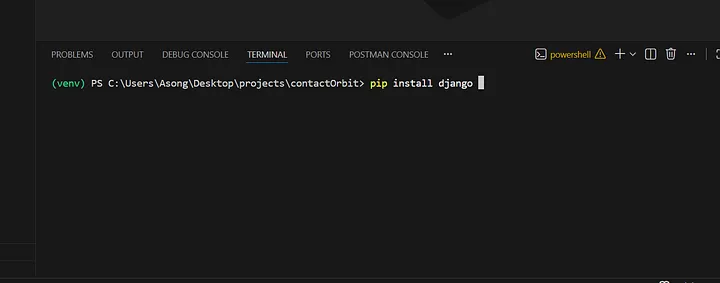
While setting up my Django project, I ran into a strange issue where pip install django kept failing on Windows, even though my internet connection was working fine.
gave repeated retry warnings and eventually failed with something like:
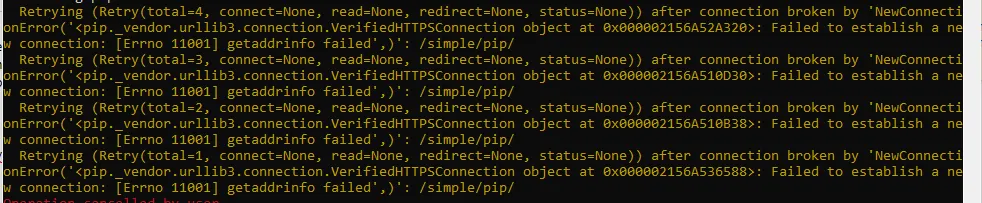
Key points:
- I was using a virtual environment
- My browser could access other websites.
- Changing networks (e.g different WIFI/hotspot) didn’t fix it
- Even pip install for other packages failed with similar connection errors
So this wasn’t a Django or pip problem, it was a windows networking problem.
Root cause (in practice)
An operation on a socket could not be performed because the system lacked sufficient buffer space or because a queue was full.
In practice, this usually means the windows networking stack (Winsock/TCP-IP) is in a bad state, often due to
- Corrupted Winsock settings
- A misbehaving network driver
- Some software interfering with sockets
Pip wasn’t able to establish HTTPS connections to PyPi. To test if it’s reachable or not open powershell as an administrator and past in this command
Invoke-WebRequest https://pypi.org/simple/django/ -UseBasicParsing
If you are getting errors, it shows your pc wasn’t able to establish a connection to the PyPi server
How to fix this problem
What finally solved the problem was resetting the Windows networking stack and DNS cache, then rebooting.
Run these commands in Command Prompt as Administrator:
Step 1 (netsh winsock reset catalog):

What it does:
Resets the Winsock catalog (Windows Sockets API configuration) back to its default state.
Removes any custom network “addons” (Layered Service Providers — LSPs) that may have been installed by:
- VPN software
- Antivirus / “internet security” tools
- Proxy / traffic-filtering software
Why it helps:
If Winsock is corrupted or an LSP misbehaves, applications (like Python/pip) can’t open sockets properly, leading to errors such as WinError 10055 or connection failures.
Side effects:
Some network tools that plug into Winsock may need to be reinstalled or reconfigured.
Requires a reboot to fully take effect.
Step 2 (netsh int ip reset):
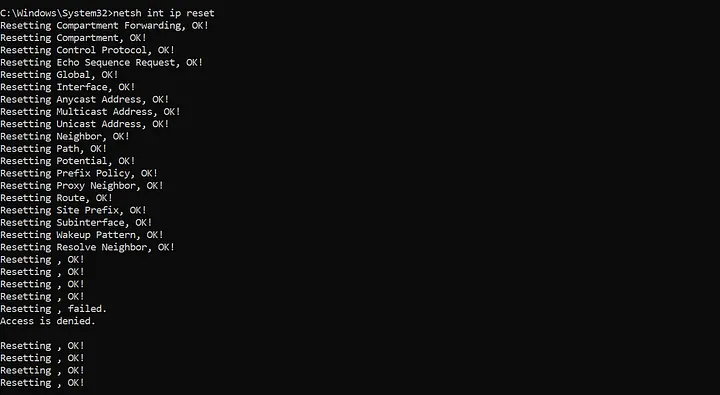
What it does:
Resets the TCP/IP stack to its default state.
Rewrites key registry entries used by the IP networking components (IPv4/IPv6).
Essentially “reinstalls” the IP protocol without you having to remove and re-add it manually.
Why it helps:
If low-level IP configuration is corrupted (due to drivers, registry edits, buggy software, etc.), you can get strange network behavior even when the basic connection seems “up”. Resetting IP can fix:
Broken routing
Weird connectivity issues
Inconsistent behavior across applications
Side effects:
Can reset:
Custom IP settings (e.g. static IP addresses)
Some advanced TCP/IP tweaks
Home users on DHCP (automatic IP) usually won’t notice anything except “it works now”.
Also best followed by a reboot.
Step 3 (ipconfig /flushdns):
What it does:
Clears the DNS resolver cache on your computer.
Removes all stored mappings of domain names → IP addresses that Windows has cached.
Why it helps:
If the DNS cache contains bad or stale entries (e.g. for pypi.org), your system may try to connect to the wrong IP address, or think a name can’t be resolved.
Flushing DNS forces Windows to:
Re‑query your DNS server for fresh records next time you access a domain.
Side effects:
None that are harmful:
First access to websites after a flush may be very slightly slower as names are resolved again.
After that, they’re cached as normal.
Step 4 (Reboot):
After running the commands i restarted my PC to apply the changes.
Once windows was back up, i
- Opened the project in vs code
- Activated the virtual environment
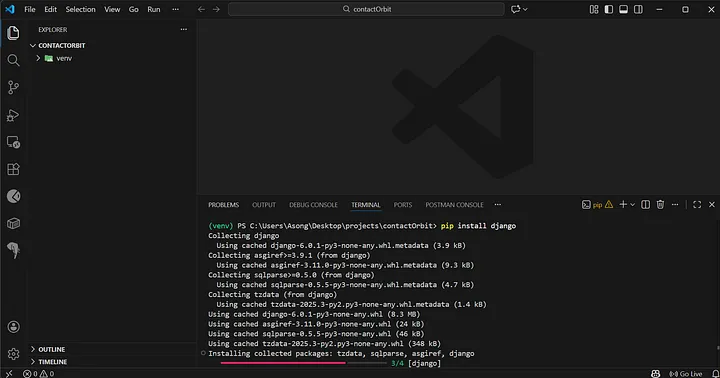
- Ran the pip install django command again and this time it was successful
Conclusion
After resetting Winsock and the TCP/IP stack and flushing DNS, then rebooting, the network stack returned to a healthy state. The same pip install django command that previously failed with WinError 10055 now works normally, allowing me to continue setting up my Django project (ContactOrbit) without any further installation issues.